Mechen M30 Review and Vague Piracy Guide
22/1/26
The Mechen M30 is a small digital audio player that is considered by many to be ‘entry level,’ whatever that means in this context. Its purpose is to play digital audio files, naturally. This is all I can think of for the introduction here. I do want to say that my main points of comparison are YouTube, free Spotify, and my brief encounter with another ‘entry level’ DAP, the Hifi Walker H2.
The exact device I’m reviewing is second hand. The quality was clearly nearly brand new, with its original box, 64GB micro SD, and charging cable. While Amazon sells the device for £79.99GBP, I got my hands on this one for only £25, just under £30 including fees and shipping. Shout out to whoever was selling this at such a price. I still wonder why you were willing to part with it for so little. How urgently did you really need it gone?
This device has a nice retro feel, although this may be different for those who were actually around back when MP3 players were a big thing. The colour is quite similar to that advertised on the official website, a nice almost-black-dark-grey, as opposed to what my phone’s camera picked up. The front has a 2x2” glass screen with a slightly smaller display, five total buttons, and a scroll wheel. The side has a volume button, a reset port, a micro SD slot, and a USB-C port for charging. The bottom has an amp and headphone jack. The top has a single power button.
The front buttons are, from top to bottom: back/rewind, forward/fast-forward, menu (which often doubles as a select), back, and play/pause. At first, these aren’t always intuitive to use. For example, you have to hold the rewind and fast-forward buttons for about 2 seconds before they do their jobs, and letting go too soon will instead switch the song. This isn’t too much of an issue if you don’t tend to skip parts of a song.
The scroll wheel is probably the most efficient way of changing the volume and scrolling through music, but it is still quite slow. Currently, I have around 250 songs uploaded, and it can still be a pain to find the exact one I’m after when looking through the music folder. It’s much more convenient to scroll through albums or artists instead, which is thankfully how I always listened to music anyway. The volume will only be changed with the scroll wheel while the display is showing the current song, otherwise the only way to change the volume is through the side buttons.
Oddly, you can only change the volume while the screen is on? Not a big deal, but it can be a little finicky at times.
The songs in an album are shown in alphabetical order as opposed to the order they’re ‘supposed’ to be…? The only other thing I can think is happening here is that the metadata isn’t computing properly in my (pirated) files, but I still doubt that’s the case. I am a little disappointed by this admittedly.
You can only make 3 playlists, which isn’t a big deal if you don’t use playlists anyway like me, but it could easily become an issue for, y’know, someone who does.
These are my main issues with the player; I have very little else to criticise it for.
This player can support micro SDs up to 264GB in size, which I imagine will be plenty for most casual listeners. Hell, even the 64GB card it comes with might do you good.
The audio is quite loud. My default volume (which you can set yourself!) is only at 5, and I’ve never exceeded 40. This thing goes up to 100. Unless you suffer hearing loss already, you do not need to go up to 100. If you do, I certainly don’t recommend going up to 100.
Most of the songs I’ve added are 128kb/p MP3 files (so, not the greatest quality), and the headphones I’ve used are Apple earbuds. I have no complaints about the audio quality so far! I think it’s a little better than Spotify, although that may just be the difference in volume swaying my opinion. Seriously, this is way louder than both my laptop and phone combined. That alone makes this worth it. There’s the option to create your own equalizer settings yourself, but the preset ones have worked best for me.
Onto custom settings, you can set a custom volume limit, backlight timer, toggle shuffling, adjust brightness, and language. Current languages include English, French, German, Italian, Spanish, Japanese, and Russian. I think that’s a decent selection for the price.
Battery life will obviously vary depending on volume, play time, and screen brightness, among other things most likely. I tend to keep the brightness on all my devices as low as possible, and rarely listen to music for more than an hour at once, so my experiences will be different to someone who listens to music near 24/7 (and if you’re one of those people, I have to ask - does that not drive you crazy?). There’s no percentage indicator, only 5 little bars to let you estimate the remaining battery life. Charging from 2 bars to full power should only take roughly an hour, and you can still use the device while it charges. While I don’t time exactly how long I use it for, I tend to only have to consider charging every 3 days, give or take.
With the Hifi Walker H2, I recall the album art being slightly cropped. I imagine that the default is for this not to happen, but I might as well mention anyway that the art is not cropped on the Mechen M30. Even with cassette album art, it looks clean.
One way to cue songs is to add a couple to a playlist, start listening, and add more as you go. Oh, and you’ll have to make sure that shuffle is toggled off. I quickly found myself not caring for cueing songs with this.
While the negative section is much longer than the positive, they’re mostly minor inconveniences that I came across. Most of them I’ve already gotten used to, worked around, and some I even forgot about until I sat myself down to write this. It absolutely does its job, which for me is to just play music that sounds good with the headphones I own. I wouldn’t mind a case for it, no matter how careful I am with not dropping my devices.
I have never paid for music, and I don’t get how it’s considered piracy. It’s free on Youtube. Am I not allowed to screen record a Youtube video? That’s illegal? Fuck off.
How I get music without paying
Disclaimer - This ‘tutorial’ assumes that you are roughly the same age as myself, possibly even younger, and have not considered music piracy before. If you were ever online before Spotify, or if you were jailbreaking iPods, this won’t be relevant to you. Essential hardware includes a laptop of any kind and an SD card. If I, of all people, can install Debian on a deteriorating chromebook, you can do this.
First you need to select where you’ll get your files from. If you already have this down then you probably don’t need this tutorial. If you don’t then your main options are most likely Spotify and Youtube. Tidal, Deezer, and Bandcamp are also probably nice options but I don’t really use any of them. Let’s focus on those first two.
Youtube quality will vary wildly with some songs if you’re not using either the Topic channels or official audios/MVs. Even with the MVs, there could be a lot of background noise that’ll interfere with the listening experience.
Spotify will technically be the more secure option in that aspect, but a lot of songs may simply not be on Spotify. Additionally, I’ve noticed that quite a few well-known X-to-MP3 sites have been dropping Spotify as an option? Since Spotify started putting out lossless streaming for premium users (or whatever that was supposed to be, I didn’t use it) the downloaded files will be larger, and I’ve heard mixed reviews about the actual quality.
Just choose what works for you. Not much else I can recommend.
When downloading these things, make sure that everything’s as safe as can be. Turn on adblockers, maybe a VPN if you have one (not sure if that’s necessary though), check that the site’s safe, you know how to do these things, I’m probably talking down to you at this point. While I won’t link any sites directly due the general risk surrounding such, I can share the Reddit Piracy Megathread for music, which I’m sure you already know but it’d feel counterintuitive to give you nothing here.
Now you need a way to change the metadata of each file. This is the sorta info like track number, release date, artist, album art, those little things that you never think about too much. There exists some apps that can pretty much do all of this for you, but picking a good one feels weird when you have no idea what you’re actually looking dor. At least, that’s how it was for me.
MusicBrainz Picard was recommended to me almost everywhere I went, and that’s what I settled on. Here is the download page, which should give you everything you need to install it on your device. Don’t ask me how to use Linux. As of writing this section, I only learned yesterday that I was using Debian and not Ubuntu. I downloaded via Flathub, in case that means anything here. If you don’t have Linux then you’ll have to either use another system or set that up yourself. From here you’re in God’s hands. Sorry.
All done? Great.
Upon sorting all that out, you might want to read the instructions and/or play around a little bit. I suggest you do that anyway to get a feel for the app before doing anything else.
From here, the fastest way that I found to sort all my files was to ignore the Scan option and instead manually search up each album that you want to add tracks to. The scans don’t always work properly, or there might be other versions of a release, or compilation albums that you’ve never heard of, and it gets too messy.
If you have a few songs from the same album, open them all in Picard at once. Search for the exact album that you want to find, maybe taking album art into account, checking the dates to make sure you’re getting the correct version. Then you can just drag and drop your files into the album and save them. Sometimes the files won’t perfectly ‘match’ with the tracks, but as long as you know the contents of each file you’re adding, you can just ignore that. Working through a full album at a time is much faster than fiddling around with random songs.
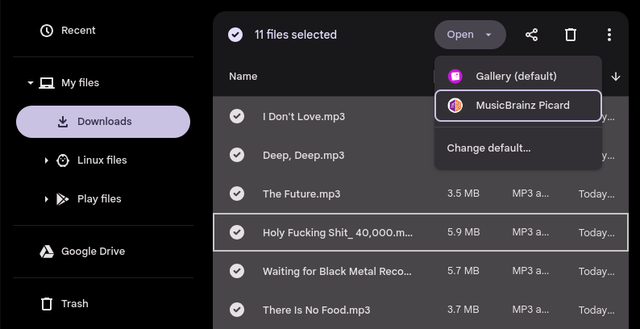
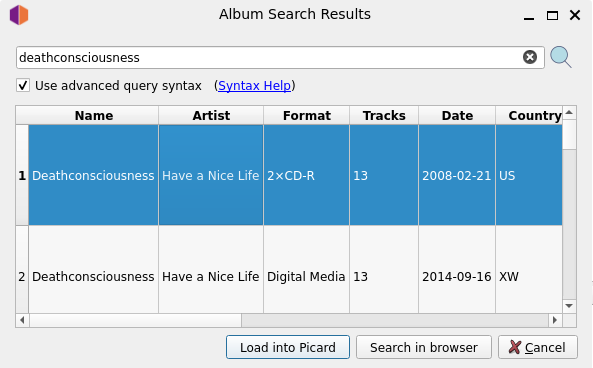
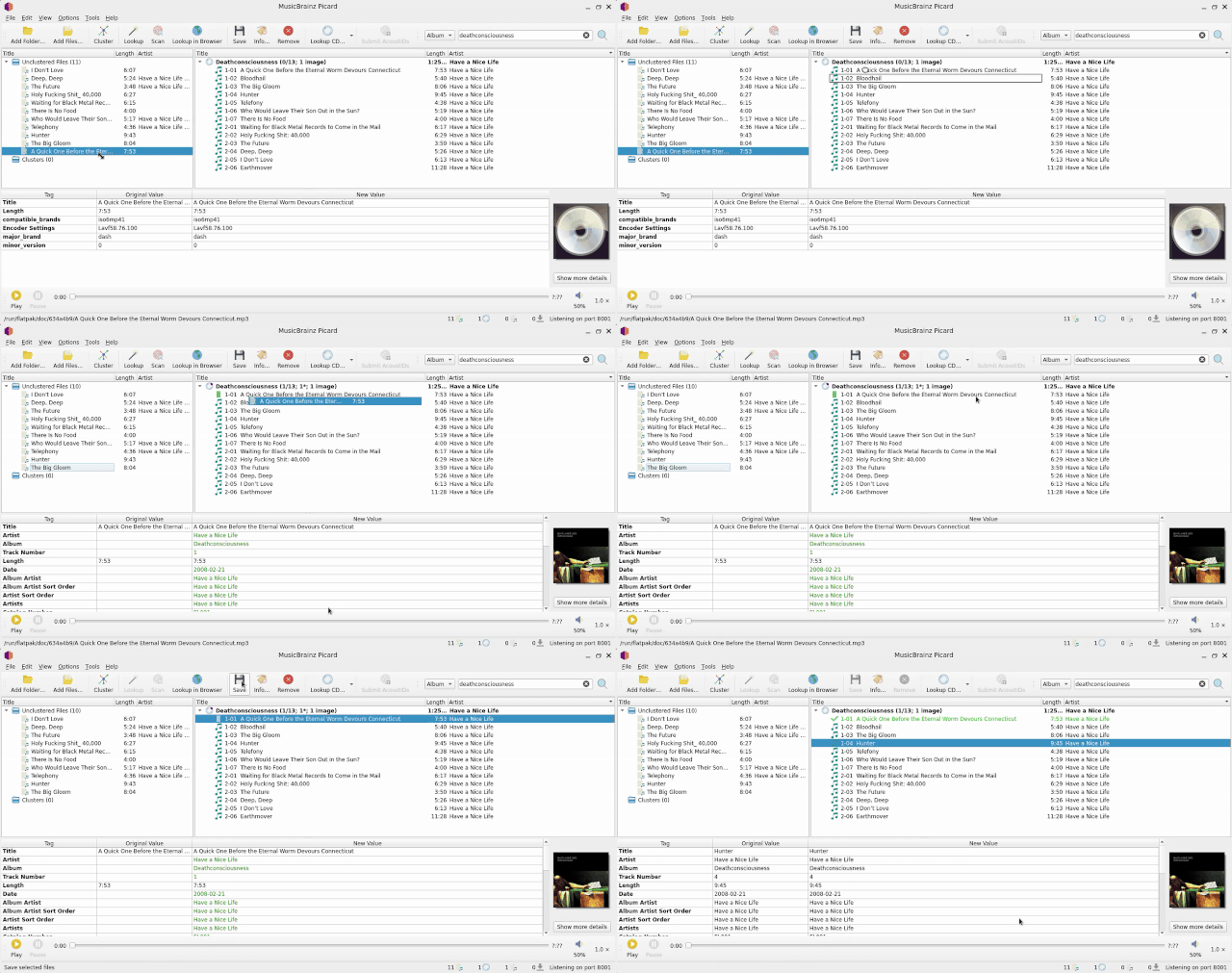
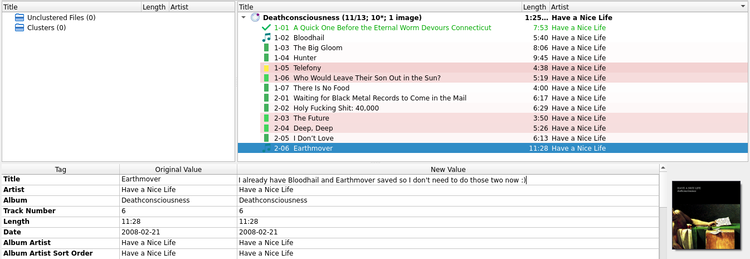
Seriously, don’t bother with the scans. It’s not worth the hassle.
Move your modified files to the SD card that you should now have inserted into your device and everything should be done. Hooray! This is the most annoying software I’ve ever encountered.
I feel like I've fallen in love with music all over again. One of the best purchases I've ever made.